
If you get an error when starting Tascus e.g. Error starting then Tascus closes, this has likely been caused by a corruption to the System Config database.
To prevent this issue recurring ensure that all Tascus devices are closed before restarting the database server.
To fix this issue, find an open Tascus client device and do the following:
Restore a configuration backup
Import Baker test settings (if used)
Restore a configuration backup
Settings > Customisation > Directories tab > Restore Backup
Select a recent backup, this will take a couple of minutes to restore all settings, and may end with an error code. You can ignore this, all station settings should be restored.
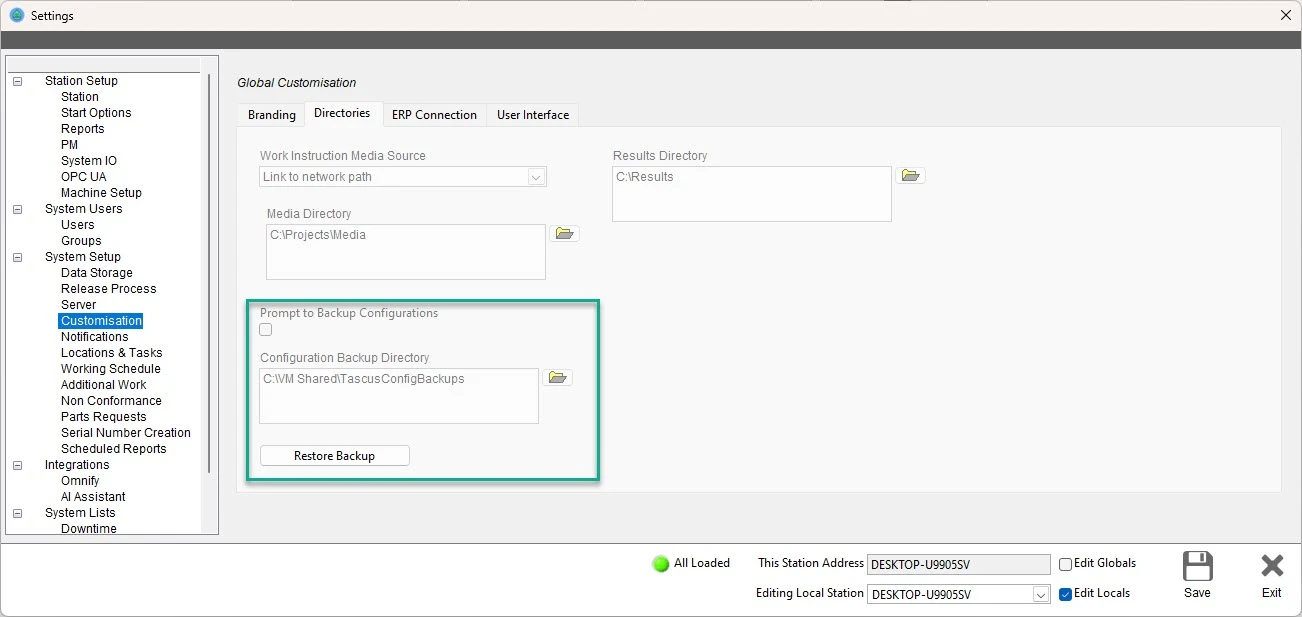
You can configure an auto save of configuration settings each time there is a change - set this up with the Prompt to Backup Configuration, using a network drive to save all the configurations to.
Troubleshooting: backup doesn't restore
If you click Restore Backup and the settings don't change, the problem is usually where the backup file is stored or how long its name is. Backups saved to a network share can have long auto-generated names, such as 20260701-0639_TascusSystemConfigBackup_MARTIN Saved.cfg.
Copy the backup .cfg file from the network Configuration Backup Directory to a local folder, e.g. your Downloads folder.
Rename the copy to something short, e.g.
20260701_Config.cfg.Click Restore Backup again, select the local copy, and click OK when asked to confirm.
Check the settings have come back, then restart Tascus.
Your original backup on the network share is left unchanged.
Import Baker test settings
If you use Baker testers on your site, you will need to re-import the list of baker test databases.
Devices > Baker Test > Config then press Import
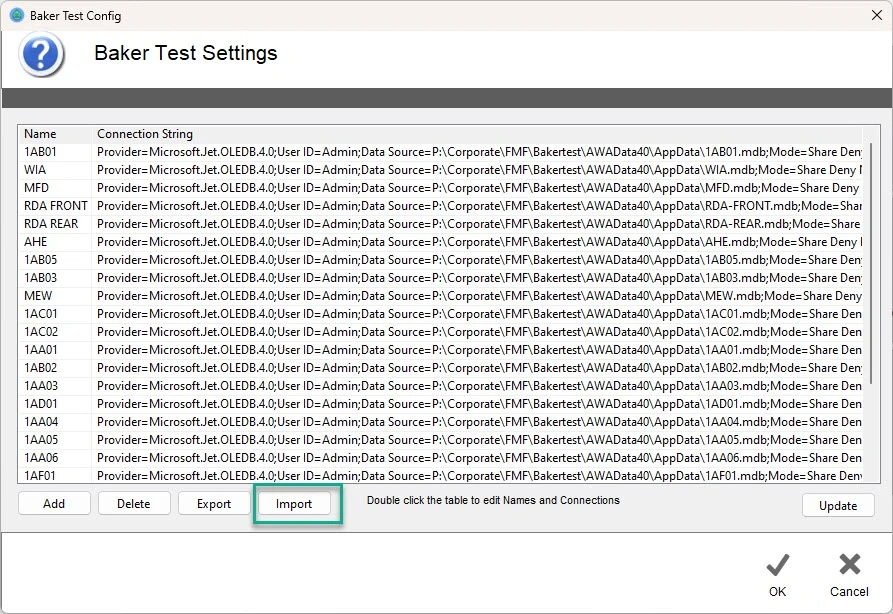
When you've updated all Baker test settings, do an Export to save the latest configuration - this is only saved manually.
